How to create a Facebook business page
Log into your personal Facebook account, click Pages, then Create page, and follow the prompts for a name, category, photos and contact details. Anyone with a Facebook account can create a Page. Setup is free, and Meta asks for a Page before you advertise in Ads Manager.

Profile or Page: which one your business needs
A business needs a Page. Your personal profile stays as it is and acts as the login that owns and manages the Page.
Hootsuite's 2026 guide puts it plainly: use your personal profile to log in, and use your Page to do business. The same guide warns against making a second personal account to run a business Page.
The gap matters once you want to advertise. Meta's Facebook Pages and profiles comparison shows that only Pages get Ads Manager access, admin roles for other people, and Meta Business Suite. A profile with professional mode turned on can boost posts but cannot use those tools.
How to create a Page on a computer
These are the steps from Meta's Create a Facebook Page help article:
- Log into Facebook, then click Pages on the left.
- Click Create page.
- Select Public page, then click Next.
- Click Get started.
- Add your Page name and category.
- Add an optional bio and click Create Page.
- Add contact info, location and hours, then click Next.
- Add profile and cover photos, edit the action button and click Next.
- Connect your WhatsApp to the Page, or click Skip.
- Invite friends to connect with your Page, then click Next.
- Pick your notification settings and click Done.
You can skip most of the optional screens and come back later. The name and category are the only fields you need to get the Page live.
How to create a Page on your phone
Meta's iPhone help version of the same article lists these steps. The Android version lists the same steps:
- Log into Facebook, then tap Menu on the top left.
- Tap Pages.
- Tap Create on the top left.
- Select Create a new Page, then tap Next.
- Add your Page name, then tap Next.
- Select a category, then tap Create.
- Add a bio, contact info and location, then tap Next.
- Add a profile photo and cover photo, then tap Next.
- Invite friends to connect with your Page, then tap Next.
- Select your notification settings and tap Next.
- Tap Done.
Pick a name Facebook will accept
Use your real business name, written the way it appears on your sign or website. Meta's Page name guidelines reject names that:
- Use all capital letters, except for acronyms.
- Include symbols like ® or unnecessary punctuation.
- Add a description or slogan, such as "The Best Cafe - We serve the best coffee in town".
- Say "official" when the Page is not the official one.
- Use any variation of Facebook or Meta.
- Are only a single general word like "Pizza" or only a place like "New York".
Example: a made-up candle shop called Ember & Oak would use "Ember & Oak Candles". "EMBER & OAK ® Best Candles in Ohio" would fail on capitals, the symbol and the slogan.
What to fill in after the Page is live
A customer who lands on your Page wants to know what you sell and how to reach you. Fill these in first:
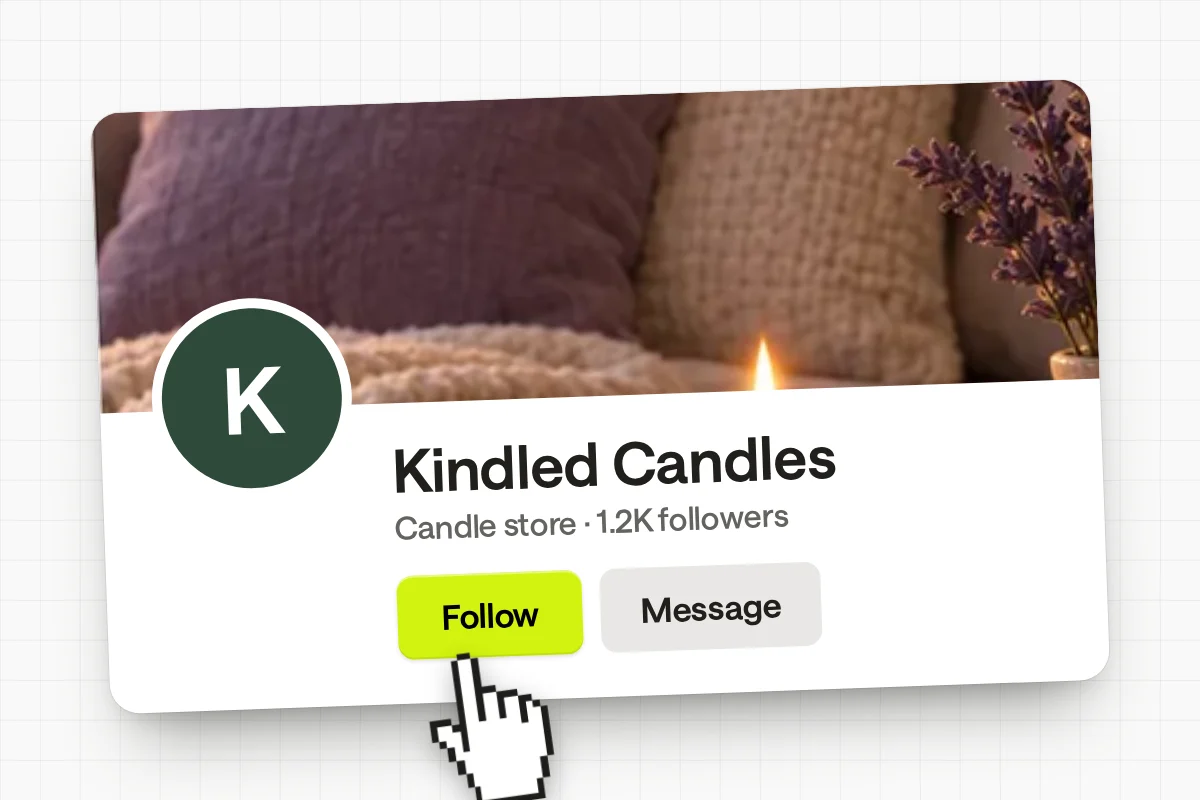
- Profile photo. Your logo. Meta says it should be 320 x 320 pixels for best quality and is cropped to a circle.
- Cover photo. A product or storefront shot. Meta says it loads fastest as an 851 x 315 pixel JPG under 100 KB.
- Bio. One sentence on what you sell and who it is for.
- Contact info, location and hours. Meta's setup flow asks for these. Online shops can leave the address empty and add the website.
- Action button. The button at the top of the Page, such as Shop now or Send message. You edit it during setup.
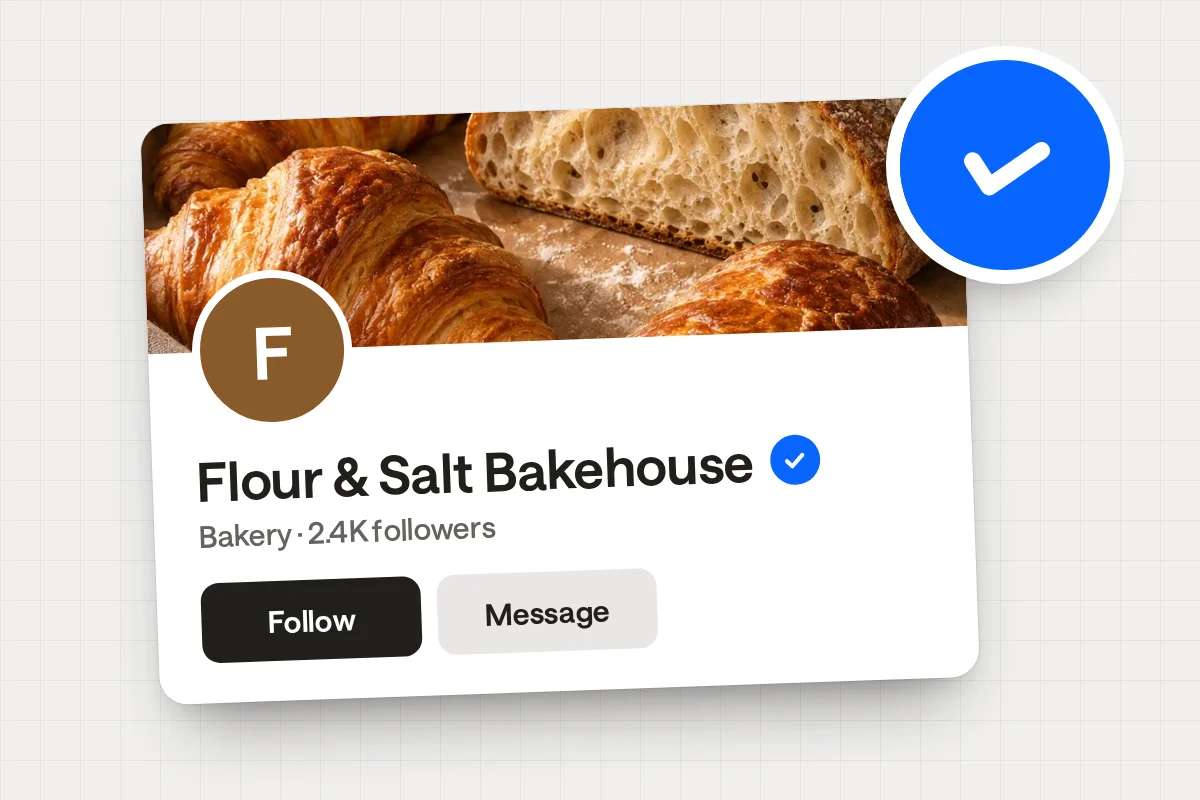
Post two or three times before you run ads, so people who tap through from an ad see an active business. A verified badge is a separate paid option; see Meta Verified for business.
How the new Pages experience works
Pages today run on what Meta called the new Pages experience when it rolled out in 2021. A few of its changes matter for a small shop.
Pages count followers only. Meta dropped Page Likes and focuses on Page Followers.
Your profile and your Page sit side by side, and Meta built the redesign around moving between them with less friction. When you post, check which one you are acting as.
Access is task-based. Each person you add gets full control or partial access to things like content, messages, insights or ads. Give a helper or freelancer partial access, and keep full control for yourself. Our hacked ad account guide covers what to do after a takeover.
What a Page lets you do next
With the Page live you can post, reply to messages and, once you add an ad account, run ads. The usual order from here:
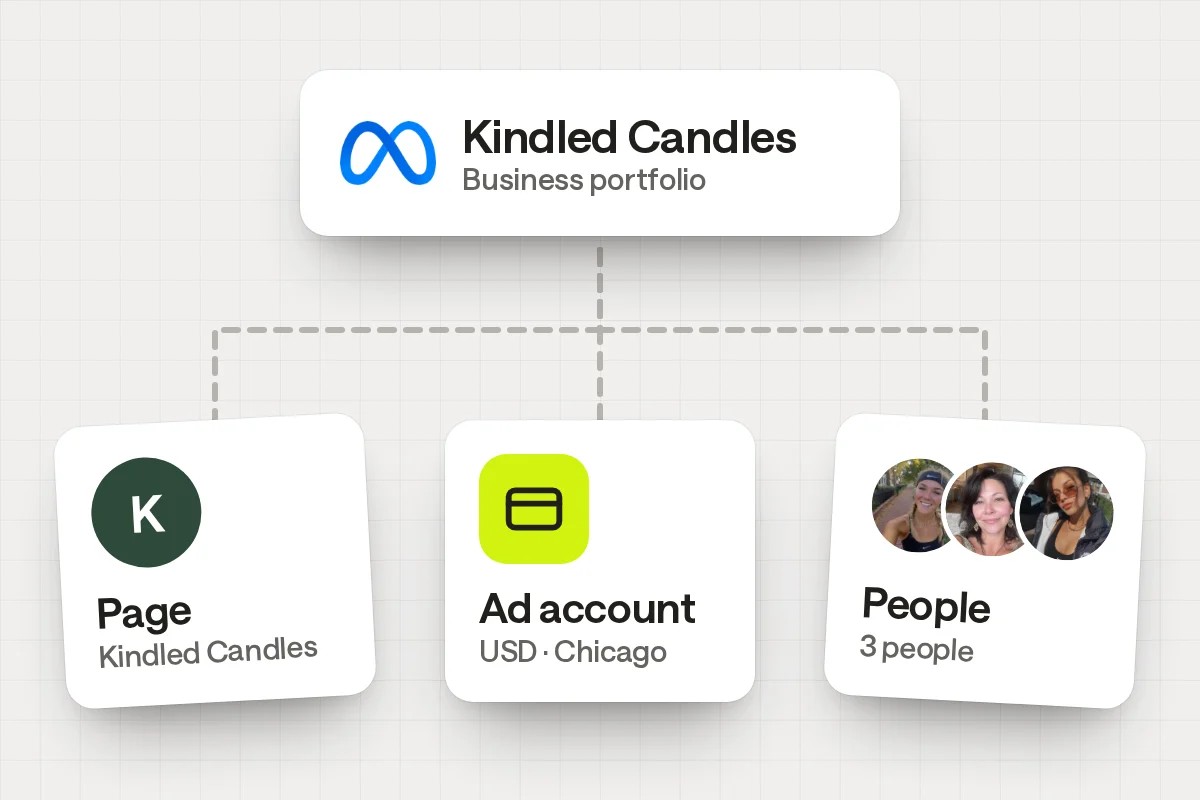
- Create a business portfolio in Meta Business Suite and add the Page to it.
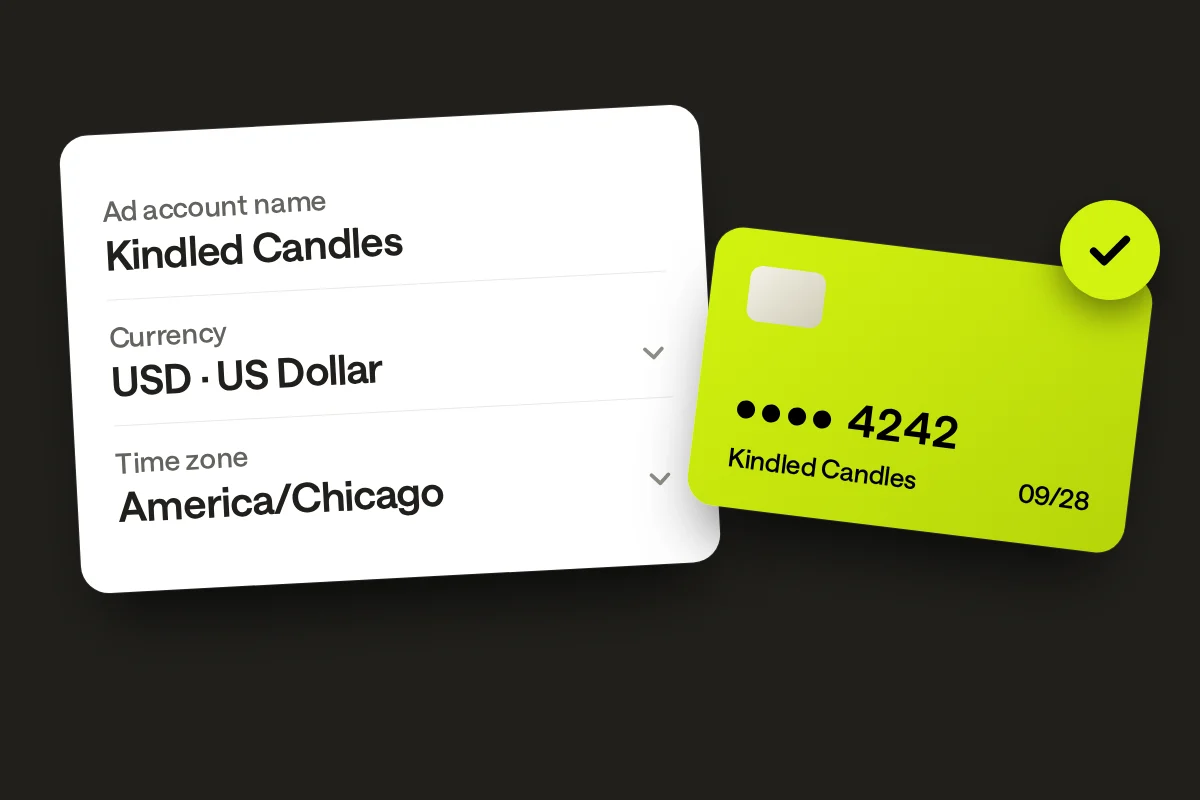
- Create an ad account, check its currency and time zone, and add a payment method.
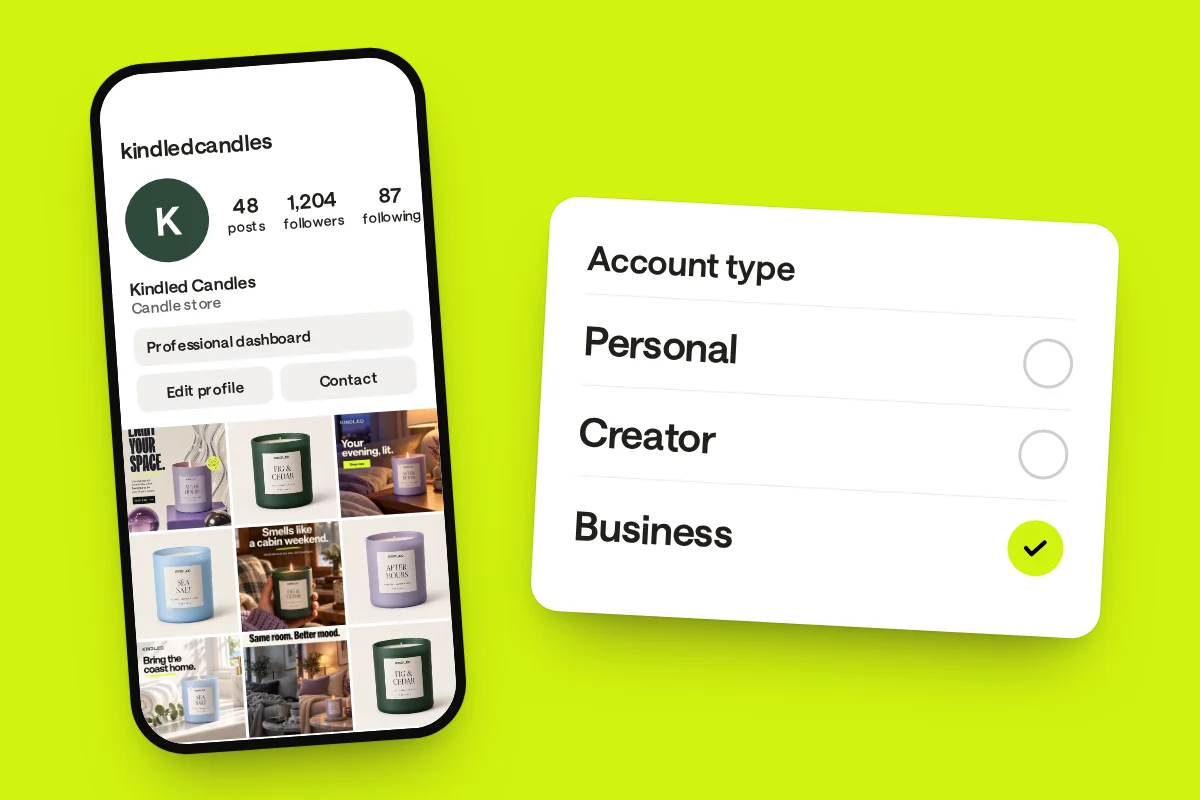
- Connect an Instagram business account if you want your handle on Instagram ads.
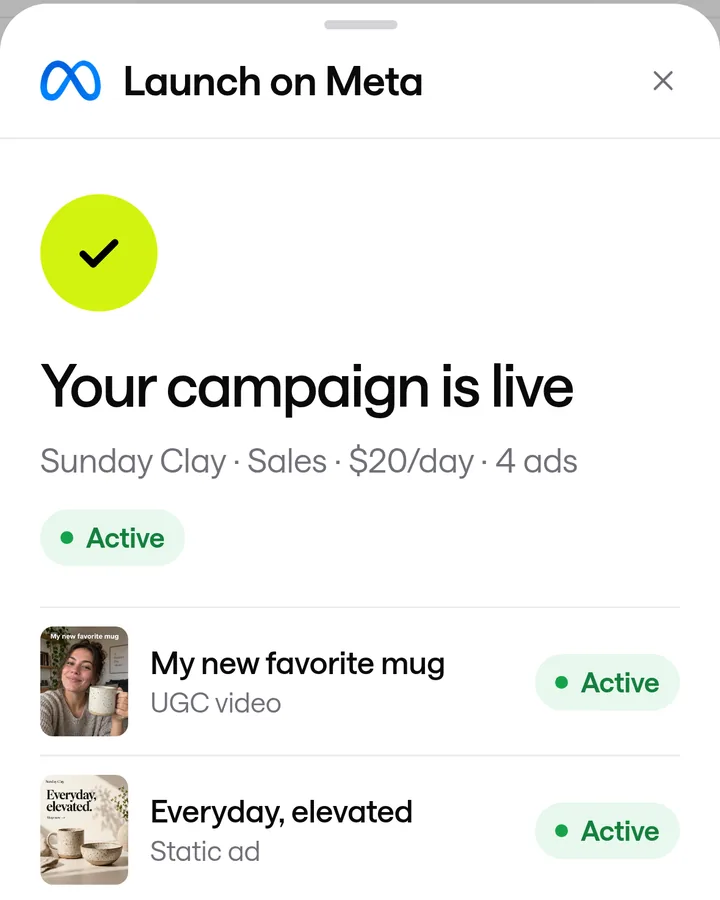
ScaleShot runs every Facebook and Instagram ad under your Page's identity. When you connect Meta, it selects your Page if you have one usable Page, and asks you to choose if you have several. After that, our Ads Agent can make image and video ads for the Page and launch them. For the full campaign walkthrough, read how to run Facebook ads.
Facebook business Page questions
Is a Facebook business Page free?
Yes. Hootsuite's 2026 guide says Page setup is free and takes roughly 10 minutes. Money comes in only when you run ads or boost posts.
Can I turn my personal profile into a business Page?
Meta's current setup has you create a separate Page from your profile. For an individual creator, Meta also offers professional mode on a profile, though it lacks Ads Manager access and admin roles.
Can other people see my personal profile from my Page?
Your Page has its own feed, separate from your personal profile.
Can I have more than one person manage my Page?
Yes. Pages support admin roles, and each person can get full control or partial access to specific tasks.
Do I need a Page to run Instagram ads?
For ads made in Ads Manager, yes. Meta asks you to have a Facebook Page, or a role on someone else's Page, before you advertise there. Boosting a post from an Instagram professional account for the first time doesn't need a Facebook account. Our guide to running Instagram ads covers the rest of the setup.
ScaleShot TeamWe build ScaleShot, an AI ad tool for small businesses on Facebook and Instagram. How we make our guides
Sources
- Create a Facebook Page, Facebook Help Center
- Create a Facebook Page (iPhone App Help), Facebook Help Center
- Guidelines for Facebook Page names, Facebook Help Center
- Facebook Pages and profiles, Meta for Creators
- New Pages experience, Meta for Creators
- How to create a Facebook business page, Hootsuite
- How to create an ad account in Meta Ads Manager, Meta Business Help Center
- Create a Facebook Page (Android app help), Facebook Help Center
- Facebook Page profile picture and cover photo dimensions, Facebook Help Center