How to take product photos with your phone
Put the product on white poster board next to a window, turn off the other lights, and shoot with your phone on a tripod. Take a straight-on white background shot, a few angles, a close-up and one photo of the product in use. Then fix the color and crop to the sizes your store and ads need.

What you need for DIY product photos
A phone, a window and something white will do. Shopify's at-home product photo guide lists a smartphone, a mini tripod with a phone mount, and white paper or card to bounce natural light. Add these if you can:
- A backdrop. White poster board works, or a white sweep, which is a curved backdrop with no seam.
- A small table you can push right up to the window.
- Tape and a lint roller. Shopify's editing checklist includes removing dust and lint, and it is faster to roll it off before you shoot.
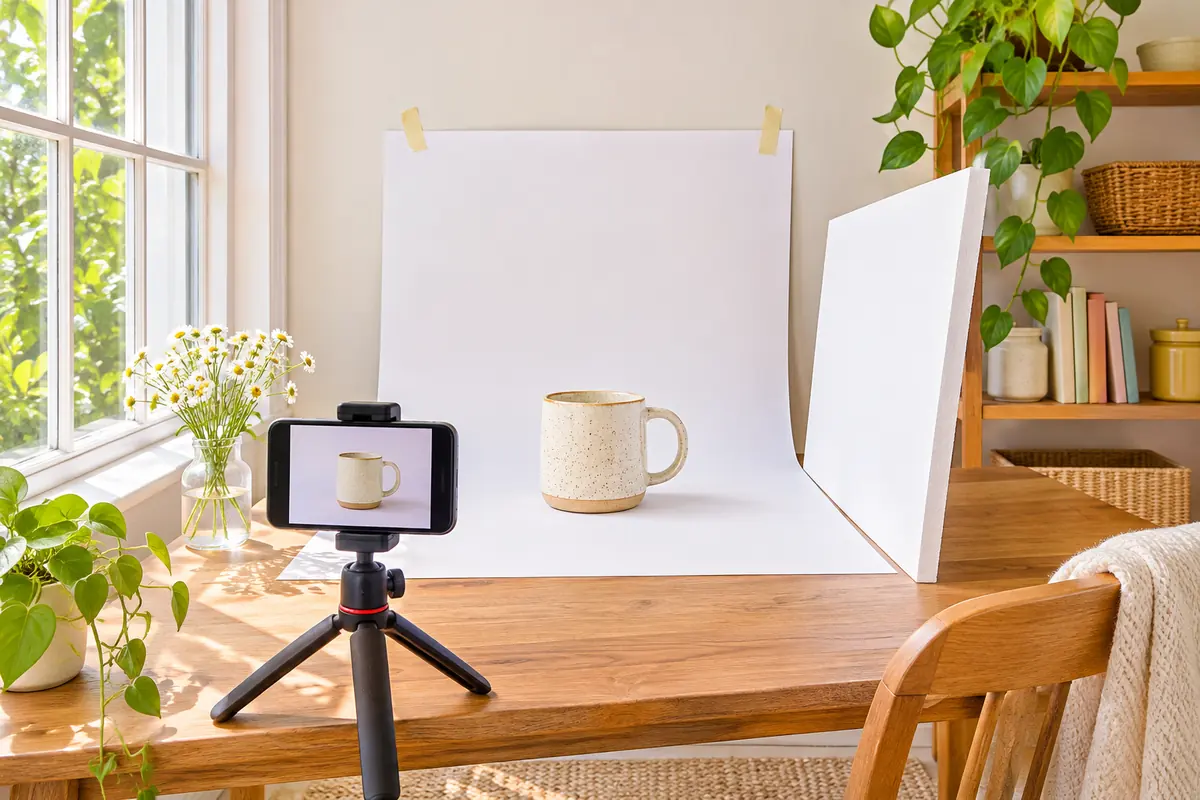
Example: a candle maker clears a kitchen table beside a big window, tapes poster board to the wall behind it and sets a phone tripod in front.
How to set up the light and background
Use soft window light from the side and turn every other light off.
- Move the table next to a window. Shopify suggests starting with the window at a 90-degree angle to your setup, then trying 45 degrees.
- Switch off all other lights in the room so they do not tint the photo.
- Stay out of direct sun, which casts harsh shadows.
- Tape the poster board to the wall and let it curve down onto the table, so there is no line behind the product.
- Stand a white card on the side away from the window to bounce light into the shadows.
The closer you are to the window and the larger it is, the softer the light. Buy pure white board. Shopify notes that off-white or cream is harder to edit to pure white later.
The shot list your store and ads need
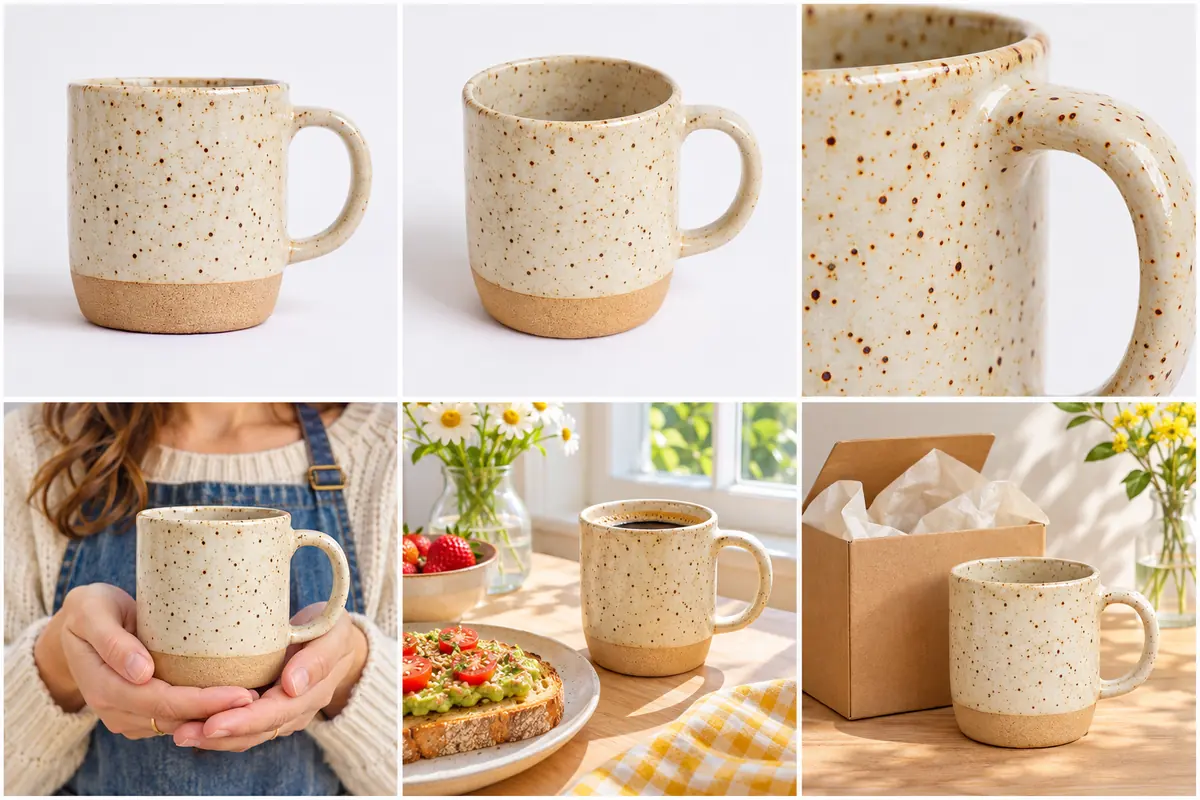
Plan two sets: clean shots on white for the product page, and lifestyle shots for ads and social posts.
For the product page
- Main image: the product straight on, on white. Shopify notes that many marketplaces require a white background for the main product photo.
- Angles: Shopify lists eye level, high, low, bird's eye, three-quarter and back views. Pick the ones that show something new.
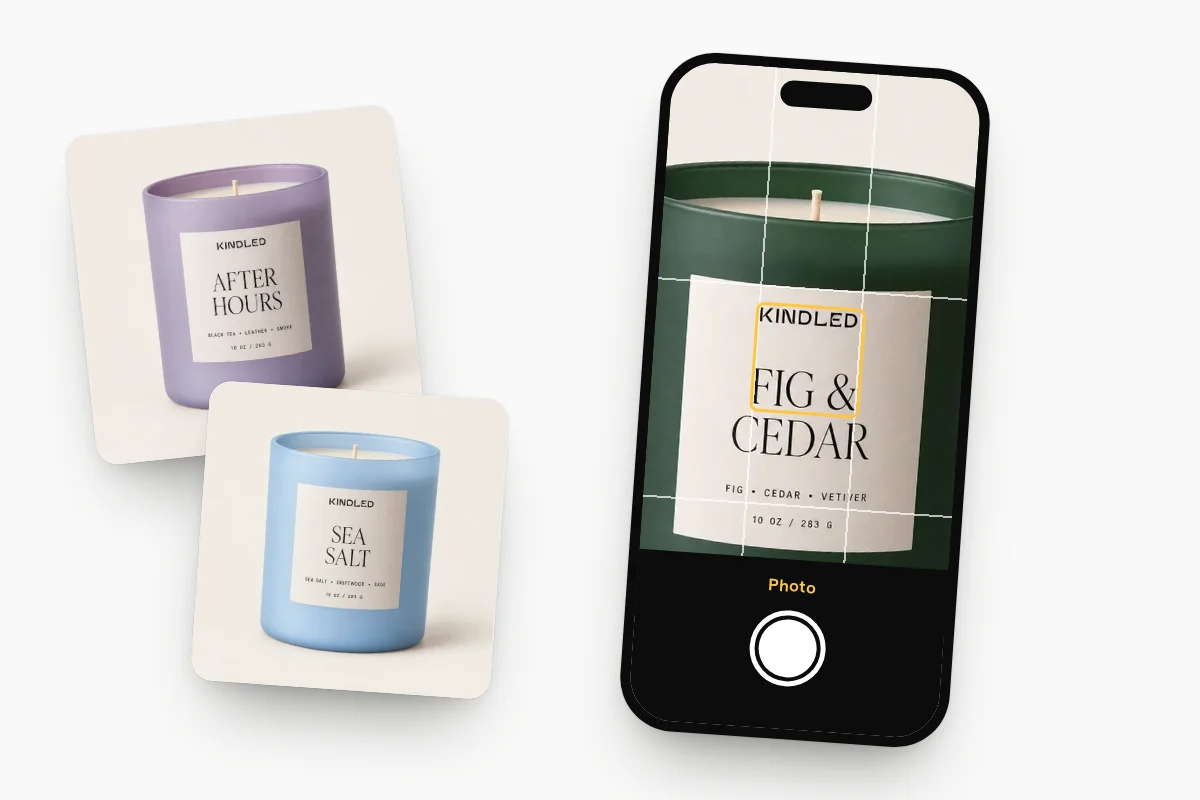
- Close-up: the label, texture or stitching.
- Scale: the product in a hand or beside something everyone knows.
For ads
- In use: a photo of the product being used, which adds context. Example: a dog treat brand shoots a dog taking a treat on the back porch.
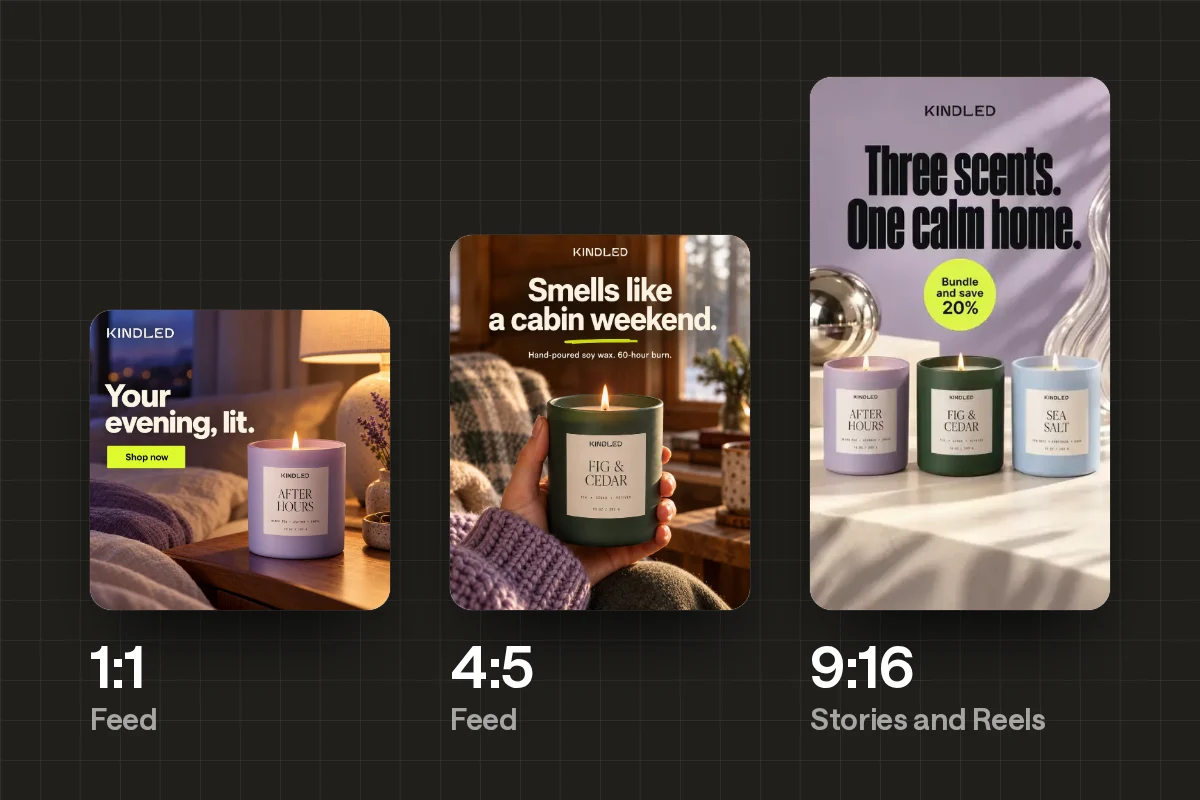
- Vertical: a tall frame with empty space at the top and bottom for Stories.
- Headline room: the product off to one side with plain space for text.
Keep the phone and tripod in one spot and turn the product between shots, so every angle matches. For layout ideas, browse these static ad examples.
How to shoot with your phone
Steady the phone, set focus on the product, and take more frames than you need.
- Wipe the lens with a soft cloth.
- Mount the phone on the tripod at the height of the product.
- Use the self-timer so tapping the screen does not blur the shot. Shopify suggests a remote shutter or a short timer.
- Tap the product to focus, then slide exposure up or down. Shopify's at-home guide says to adjust the exposure for the next shot if the image is not bright enough.
- Take several frames of each angle and pick the sharpest later.
If your phone camera has a RAW or Pro mode, turn it on. Shopify recommends RAW where possible, or else the largest, highest-quality JPG setting.
Editing and image sizes for your store and Meta
Edit for true color first, then export one version per place the photo will appear.
Shopify's editing checklist covers the basics: fix color casts so whites and grays look accurate, compare the photo with the real product, remove dust and lint, and apply the same edits to similar images. Phone apps cover all of it. Shopify's guide names Lightroom, Snapseed and VSCO. Export as JPEG in the sRGB color space.
Sizes to export
- Shopify product page: the Shopify Help Center says 2048 x 2048 px usually displays best for square images, and files must be under 20 MB. Use the same aspect ratio for every product so collection pages line up.
- Facebook feed ad: Meta's ads guide suggests a 4:5 ratio at 1440 x 1800 px, as JPG or PNG.
- Stories: 9:16 at 1440 x 2560 px, with text and logos kept out of roughly the top 14% and bottom 35% of the frame.
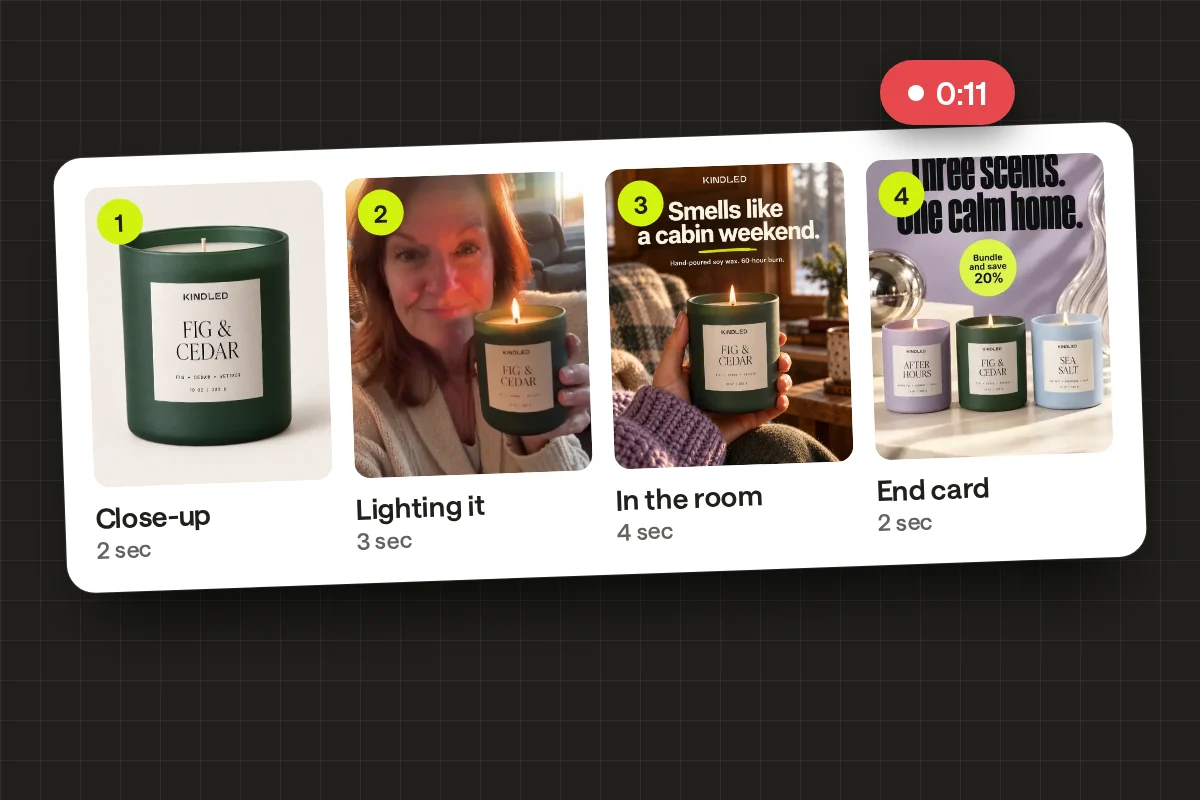
Every other placement is in our guide to Facebook ad sizes. For moving pictures, see how to make a product video.
Where AI-made scenes fit
Keep a real photo as your main product image and use AI for extra lifestyle scenes.
Shopify has this built in. From your Shopify admin, go to the image and click its thumbnail to open the file editor. Click Generate, describe the change (Shopify's example is "change background to a studio"), click Submit, then Save or Save as new. Shopify says Generate can also change lighting or other parts of the image, so check that the product still looks like what you ship. The Color background option swaps in a solid color or a transparent background, and transparent images need saving as a new PNG.
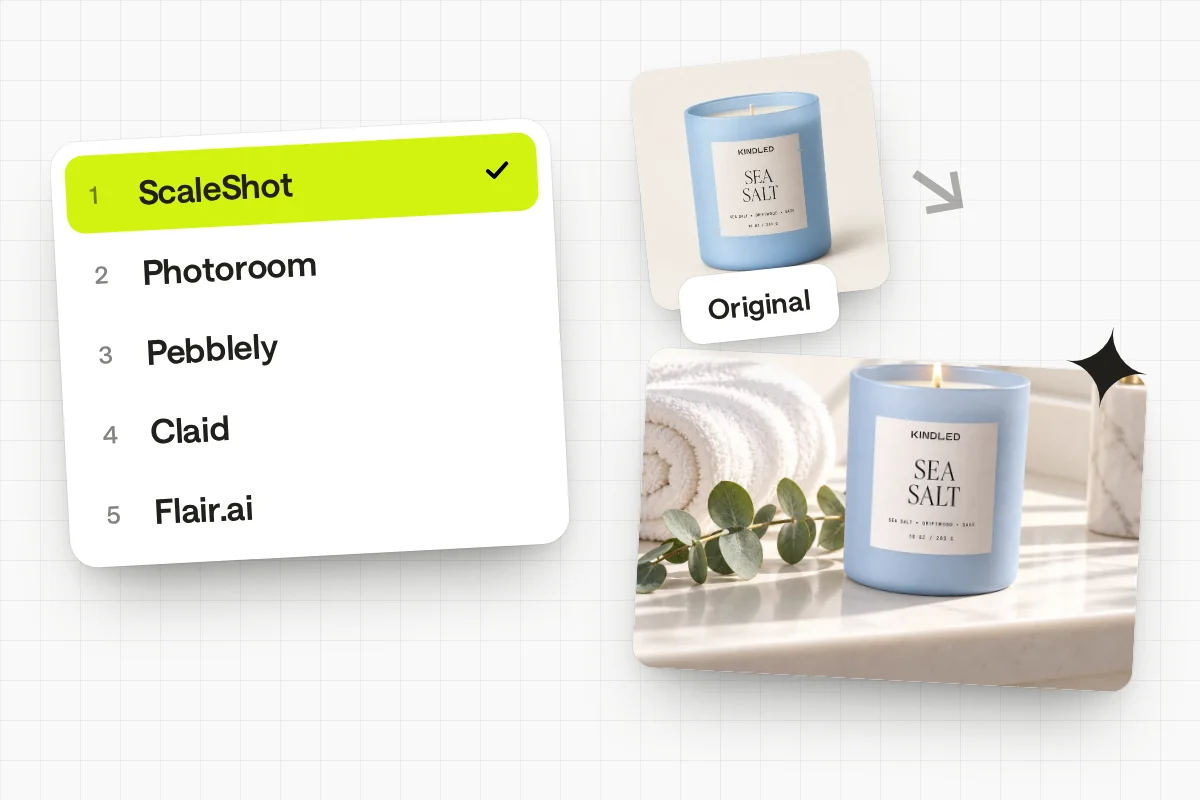
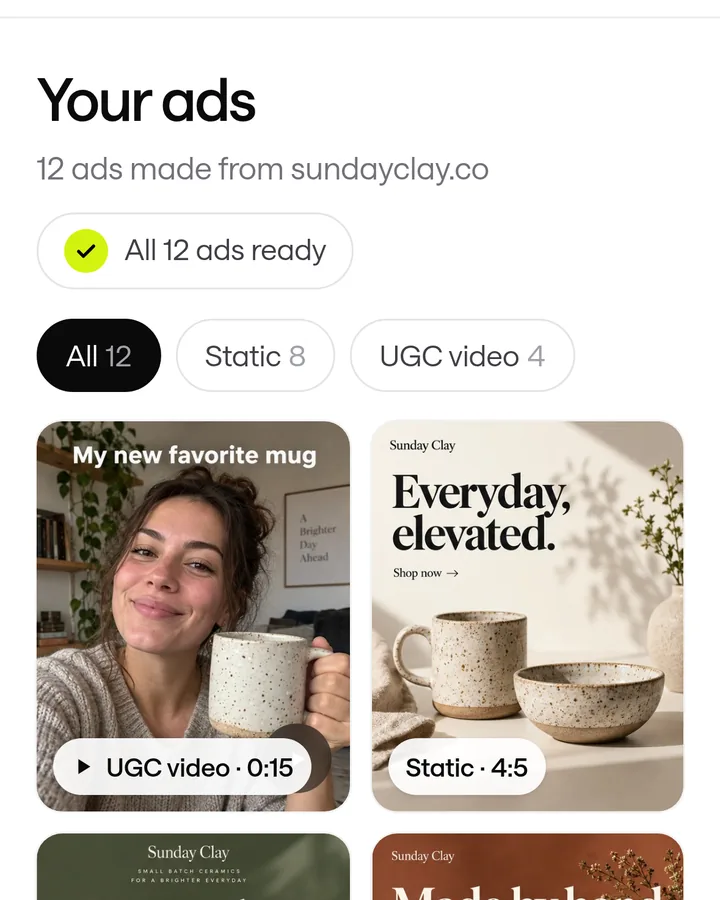
ScaleShot starts from your product too. In Studio you pick a product, describe the scene and add a reference image if you want one, and it makes a new image ad. A finished ad you already like can go in the Library, where uploaded ads run exactly as they are. For more options, see our list of AI product photography tools.
Product photography questions
Why does my white background look gray?
The camera reads the bright background and underexposes the shot. Shopify's fix is to overexpose by 1 to 1.5 stops, then use the Whites or Levels slider in editing to brighten the background to pure white.
What file type is best for product photos?
Shopify says PNG is the best file type for most product images, followed by JPEG. Meta's feed ads accept JPG or PNG.
How many photos should each product have?
Cover the main shot on white, the angles that show something new, a close-up and at least one in-use photo. Shoot with space around the product so you can crop both square store images and tall ad images from the same frame. For Etsy listing photos, see how to get sales on Etsy.
Can I use AI-made product photos in ads?
Outputs you generate in ScaleShot are yours to use in paid ads, and we suggest checking each platform's rules on AI disclosure. Whatever tool you use, the product in the picture should match what the customer receives.
ScaleShot TeamWe build ScaleShot, an AI ad tool for small businesses on Facebook and Instagram. How we make our guides
Sources
- Product Photography: A DIY Guide for Beginners, Shopify
- Product media types, Shopify Help Center
- How to Take Product Photos At Home With (almost) No Equipment, Shopify
- Facebook Feed image ad specs, Meta Ads Guide
- Facebook Stories image ad specs, Meta Ads Guide
- Media generation powered by Shopify Magic, Shopify Help Center